

This guide walks through the full design-to-code workflow with Subframe and an AI coding assistant. The demo uses Claude Code, but the same workflow applies to any MCP-compatible AI assistant.Documentation Index
Fetch the complete documentation index at: https://subframe-59800133-apg-component-directories.mintlify.app/llms.txt
Use this file to discover all available pages before exploring further.
Getting started
Install the Subframe MCP server and agent skills for your AI assistant. See Agent skills for setup instructions.This guide uses Claude Code as the example, but the workflow works with any MCP-compatible AI assistant including
Cursor and Codex.
Design with AI
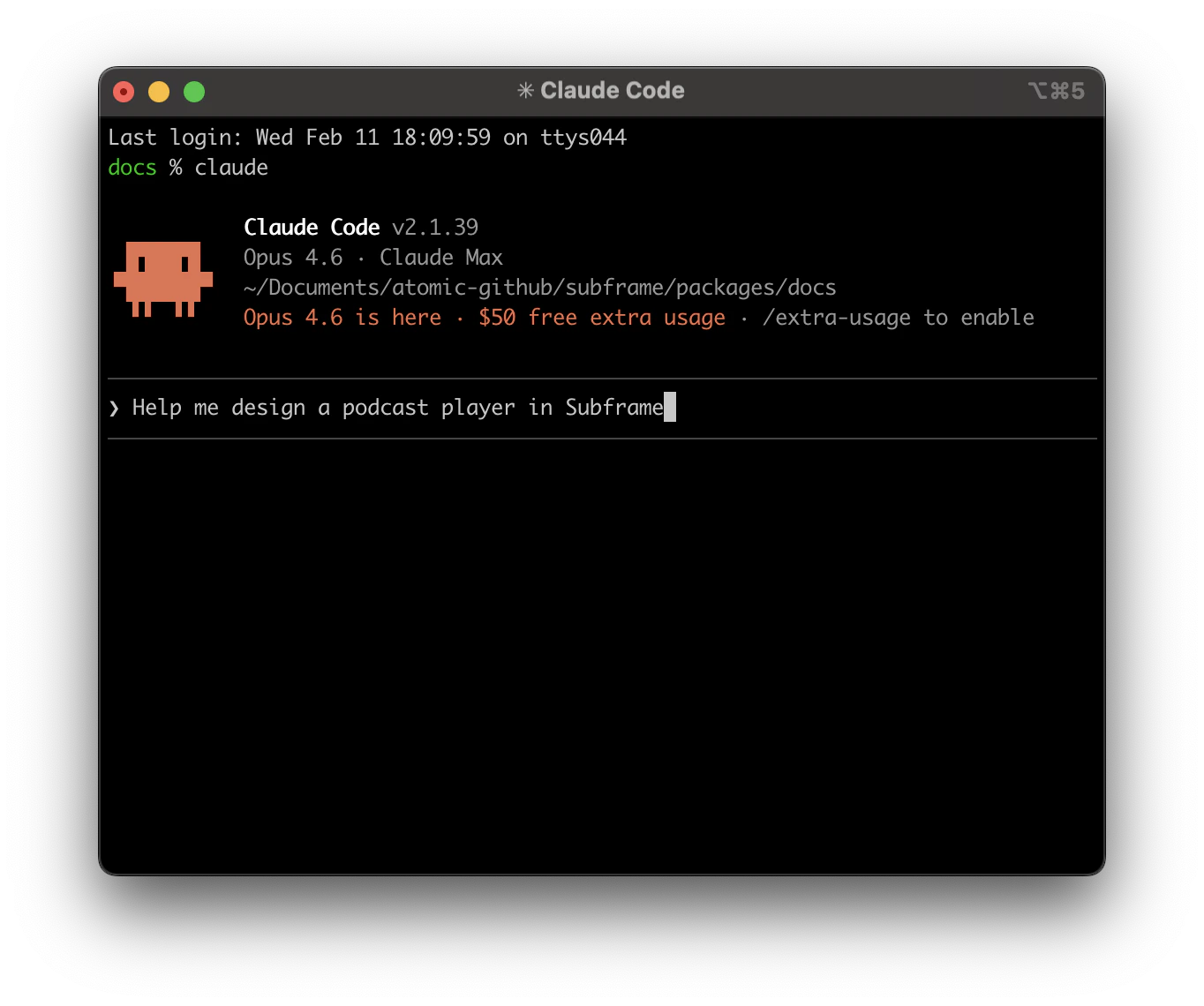
design_page tool to generate design variations in Subframe.
After kicking off a design, Subframe returns a flow URL. Open it to watch each variation appear as a page on the flow canvas as it finishes generating.
Review design variations
The flow canvas is your review surface — variations sit side-by-side as real pages in your project. From here you can:- Click a page to open it in the editor and refine visually
- Use Ask AI on any page to iterate further
- Delete the variations you don’t want
Combine variations
There are two ways to mix and match elements from different variations:- Ask your AI agent — your agent has access to all variations. Ask it to combine elements from different ones, for example “use the header from variation 1 with the layout from variation 3.”
- Edit in Subframe — open any variation page from the canvas, then use Ask AI to incorporate elements from other variations.
Edit in the Subframe editor
Click any page on the flow canvas to enter the full design editor. From there you can:- Chat for edits in Ask AI mode
- Drag-and-drop in Design mode
Using designs with your AI agent
To hand the design to your AI agent, copy the MCP link and reference it in your prompt. You can get the MCP link for any design by either:- Copying the link from the browser address bar
- Copying the link under Code > Inspect in Subframe

How AI agents implement your designs
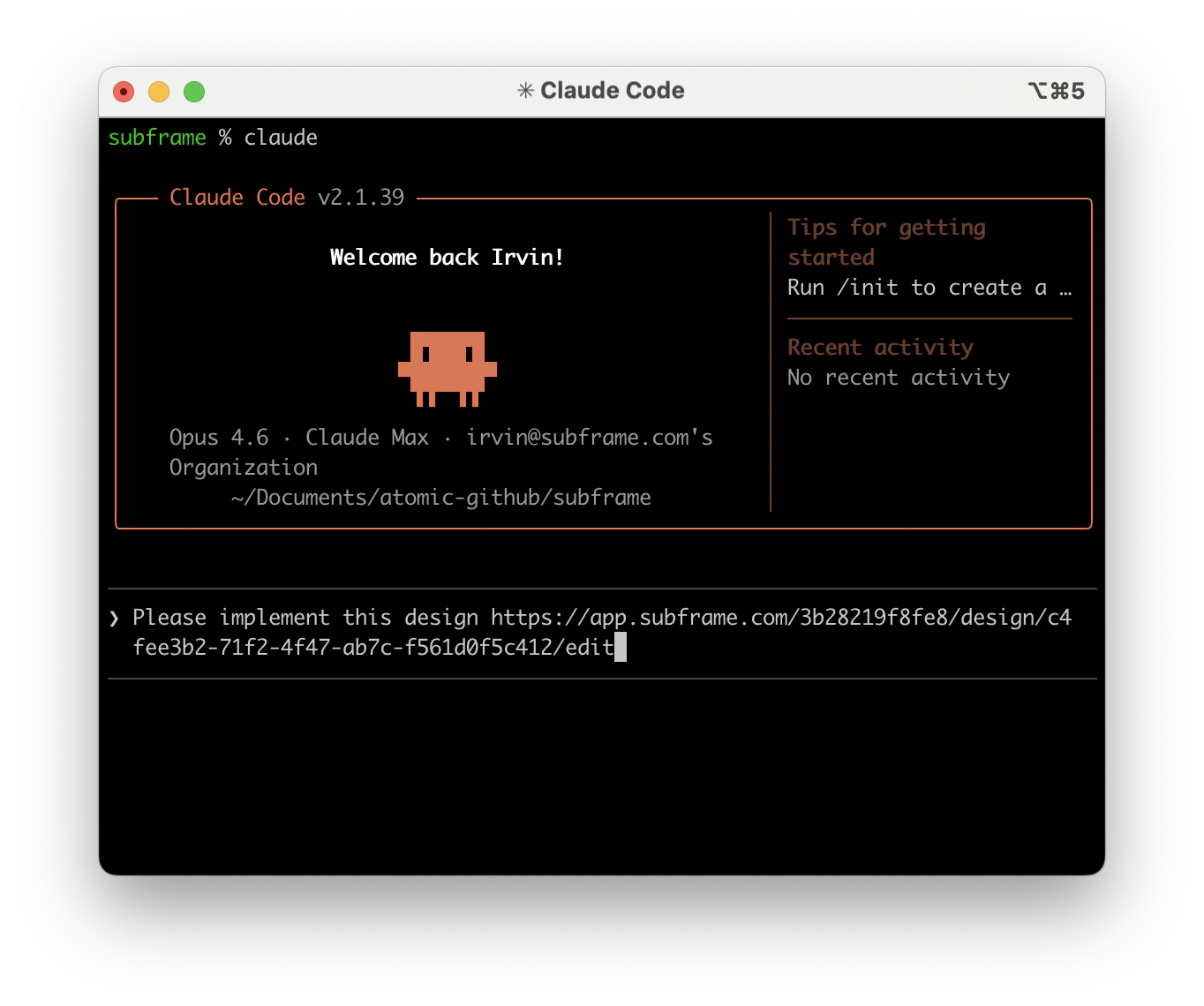
- New project from scratch
- Existing project with Subframe
- Existing project without Subframe
Your AI agent creates a new project, initializes Subframe with
/subframe:setup, then implements your designs. This is the fastest path to see the full workflow end-to-end.- Ask your AI agent to scaffold a new project
- Run
/subframe:setupto initialize Subframe - Share the MCP link and ask the agent to implement the design